Workflow designer

Design real integrations without hiding the logic.

The CXFabric designer gives teams a visual workspace for building customer-owned automation. Teams can drag components onto a canvas, connect the steps, configure each action, and keep the workflow logic visible from first draft through deployment.

Builders can work visually, add connector actions, use built-in components, bring in custom code where needed, execute the workflow, review logs, inspect context, and version the implementation before it moves into a customer environment.

Visual canvas Step configuration Preferences and widgets Execute and inspect
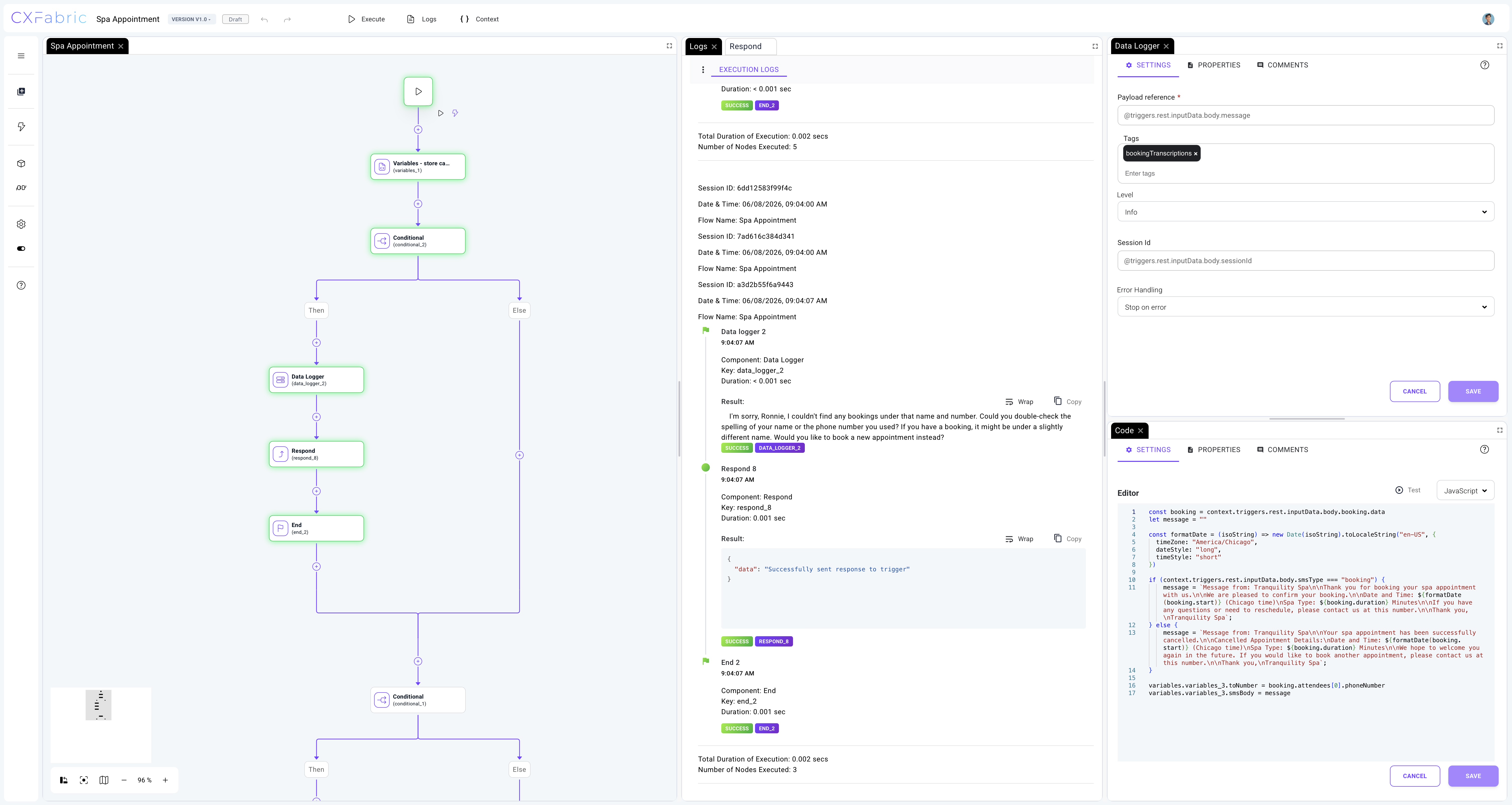
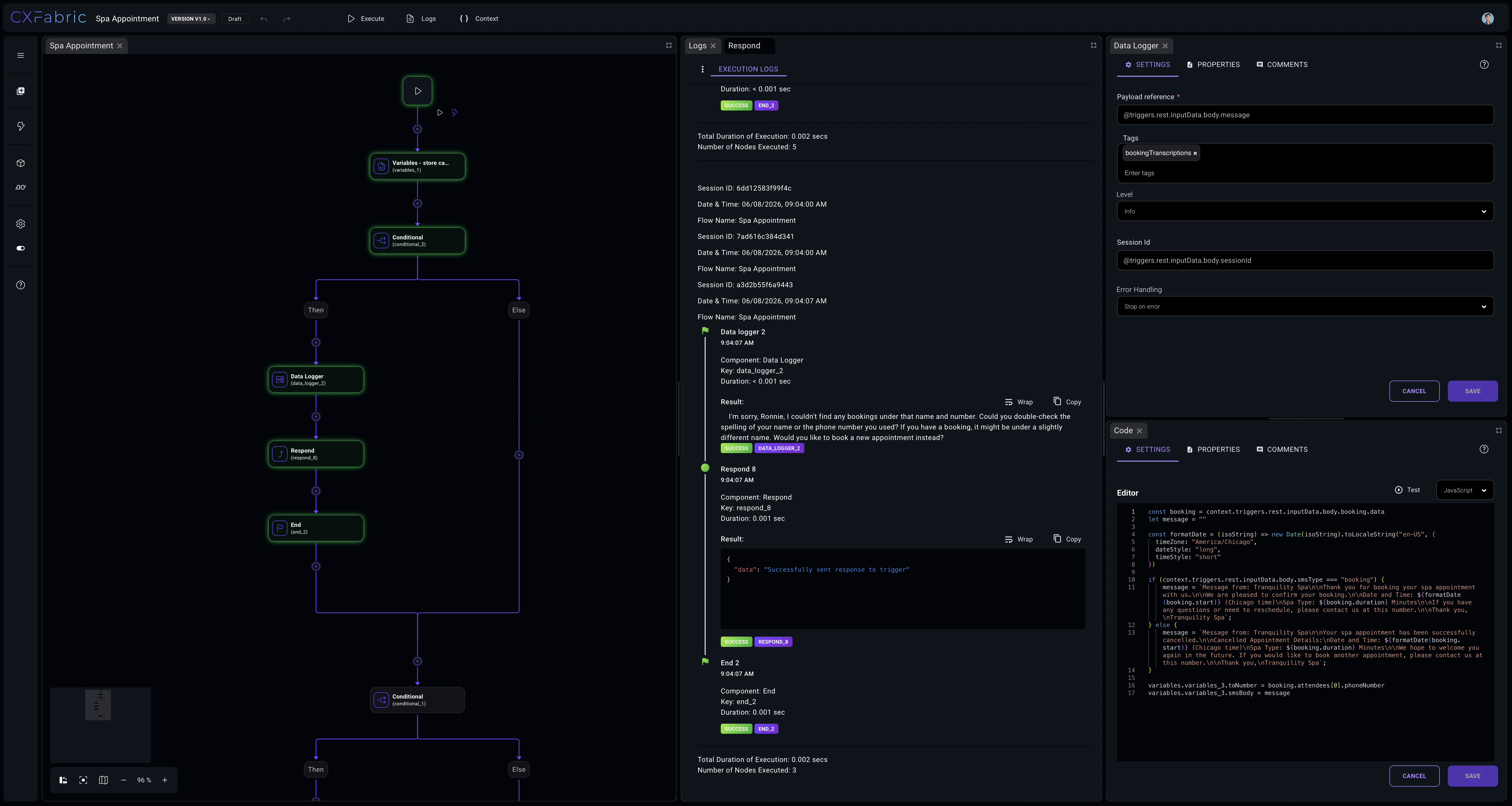
Dark theme CXFabric workflow designer showing the flow canvas, execution logs, data logger settings, and code editor. Light theme CXFabric workflow designer showing the flow canvas, execution logs, data logger settings, and code editor.

Inside the designer

See the whole workflow. Work on the detail that matters.

The canvas keeps the operating path readable while each selected step opens the configuration, code, context, and test tools needed to make it executable. Choose a view to explore how builders move through the same workspace.

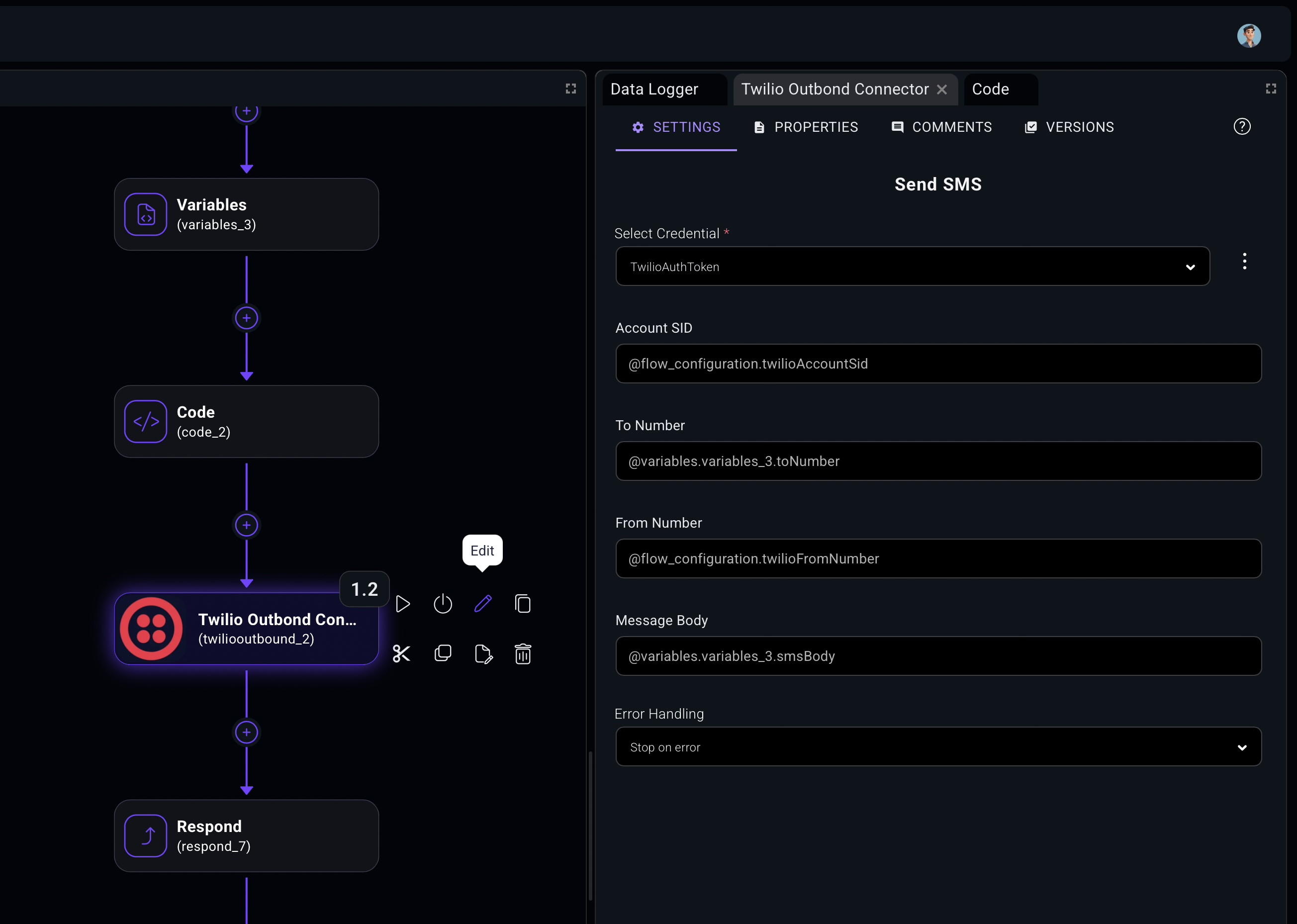
CXFabric Designer canvas showing a visual workflow and its connected steps.
Canvas

Build a readable system map.

Place triggers, components, connector actions, branches, and responses into one visible path. The implementation stays understandable as the workflow grows.

  • Reusable triggers and components
  • Connector actions beside business logic
  • Branching and exception paths
Dark mode CXFabric system logging interface with searchable fields, execution log lines, highlighted workflow identifiers, and log display controls. Light mode CXFabric system logging interface with searchable fields, execution log lines, highlighted workflow identifiers, and log display controls.
Live designer log real time
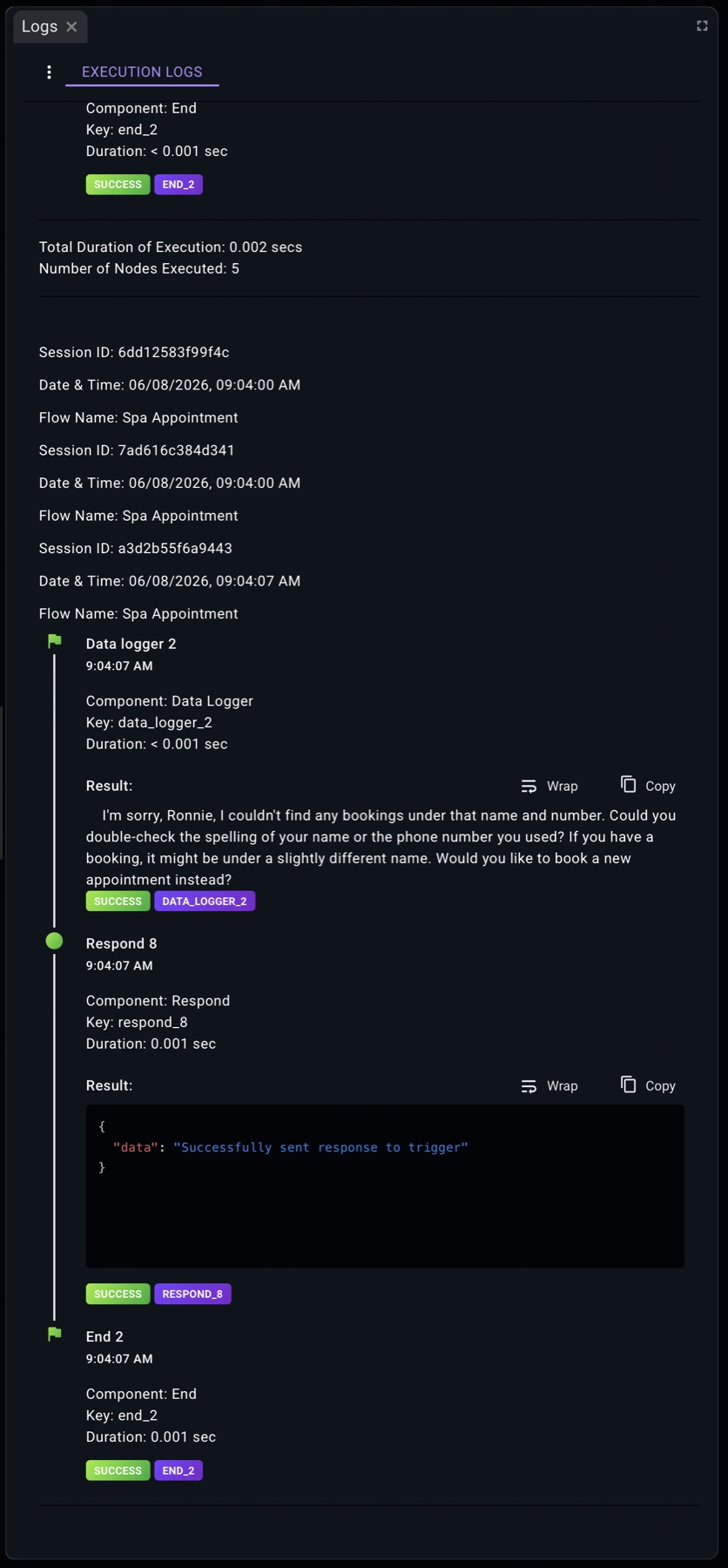
Dark mode CXFabric designer real-time execution log showing component output while the workflow runs. Light mode CXFabric designer real-time execution log showing component output while the workflow runs.
System log archive Live run output Download-ready trace

Build and inspect

Execution tools belong in the designer.

CXFabric gives teams two levels of execution visibility. System and historical logs provide a searchable operational record across previous runs, services, fields, sessions, and workflow identifiers.

The designer also has a real-time execution log that shows step output as the workflow runs, so builders can inspect component results, response payloads, timing, and success state without leaving the canvas.

System and historical logsSearch, filter, download, and review execution history across runs.
Real-time designer outputWatch component results, payloads, timing, and status appear during execution.

From builder to operator

Keep ownership inside the workflow.

A production workflow is more than its lines and nodes. CXFabric keeps the context needed to review, protect, promote, and operate the implementation close to the work itself.

Explore platform security
Change

Versions and implementation context

Keep drafts, comments, and step-level decisions understandable before promotion.

Access

Credentials as platform resources

Let approved steps use protected credentials without hard-coding secret values.

Operate

Execution history beside the build

Carry the same readable workflow from design into troubleshooting and support.

Workflow walkthrough

Bring a real workflow. We will map it in CXFabric.

Start with one workflow, one customer environment, or one integration backlog. We will show how the designer turns it into a readable, executable automation path.